The Client Handoff That Stops Late-Night Edits

There is a version of every agency where half of Tuesday disappears into two-line copy edits for sites that launched months ago. The client cannot change a headline without you, so every typo becomes an email, every seasonal update becomes a ticket, and neither side is happy about the arrangement. The problem is not the client; it is a handoff that made you the only person who can touch the site. This guide covers the handoff that ends it: what to set up before launch, what to teach in the last meeting, which platforms make client editing safe, and where the line sits between edits and rebuilds.
Every agency knows this client. The site launched in March. It is now September, and you have changed their opening hours four times, swapped a headshot twice, and fixed a typo they introduced while trying to fix a different typo. None of it was billed, because who invoices for changing "Tuesday" to "Thursday"?
The instinct is to blame the client, or to solve it with a maintenance retainer. But most small clients do not want a retainer for text changes, and chasing $75/month for edits you resent doing is not a business. The real fix is upstream: a handoff that leaves the client genuinely able to make routine edits themselves, and clear about where their editing ends and your paid work begins.
Here is the four-part handoff we recommend, with the exact things to hand over and a way to verify each part actually landed.
The editing experience your client actually sees
The handoff works when the client can edit without calling you. Here is the difference between a typical CMS and a simple one.
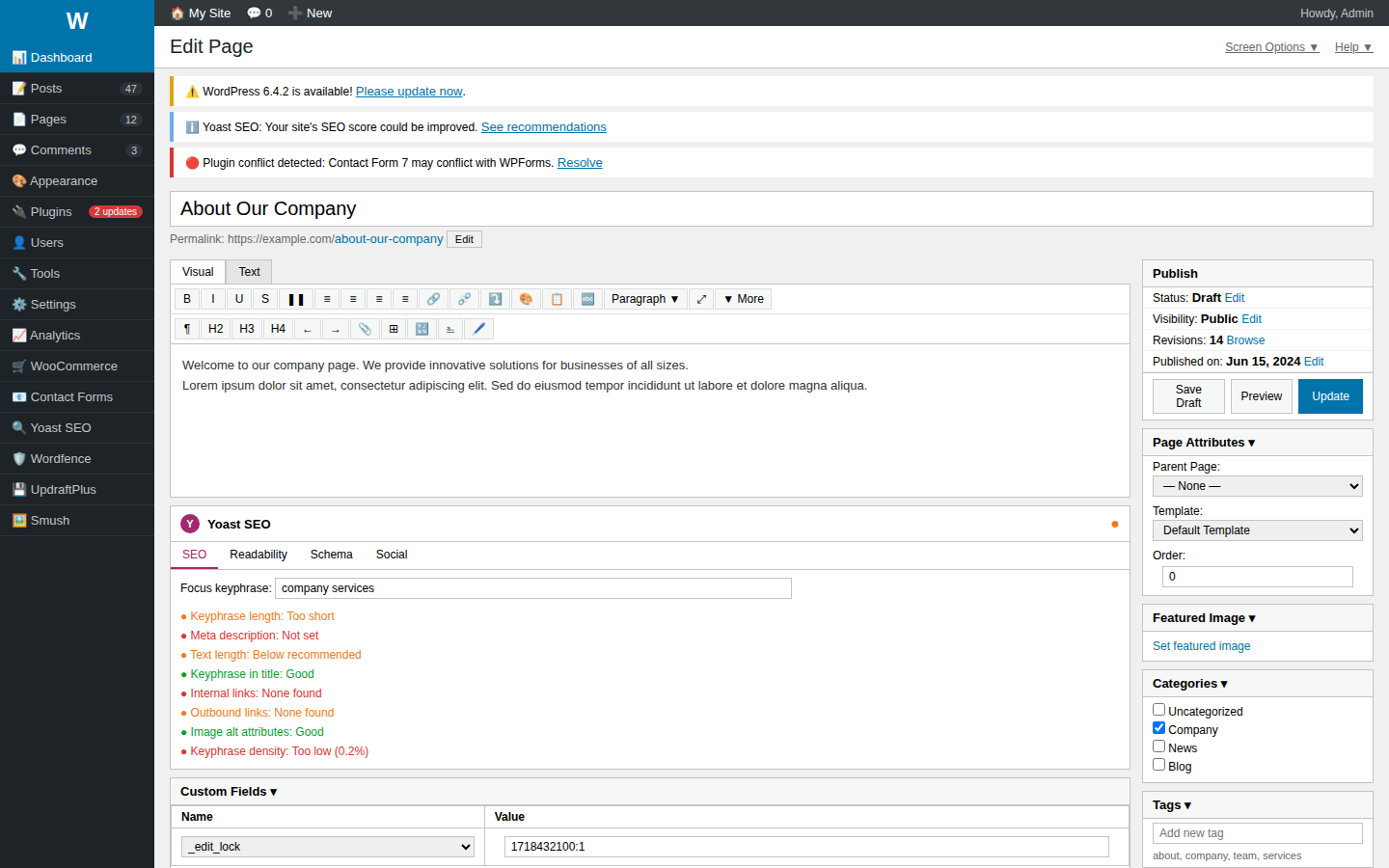
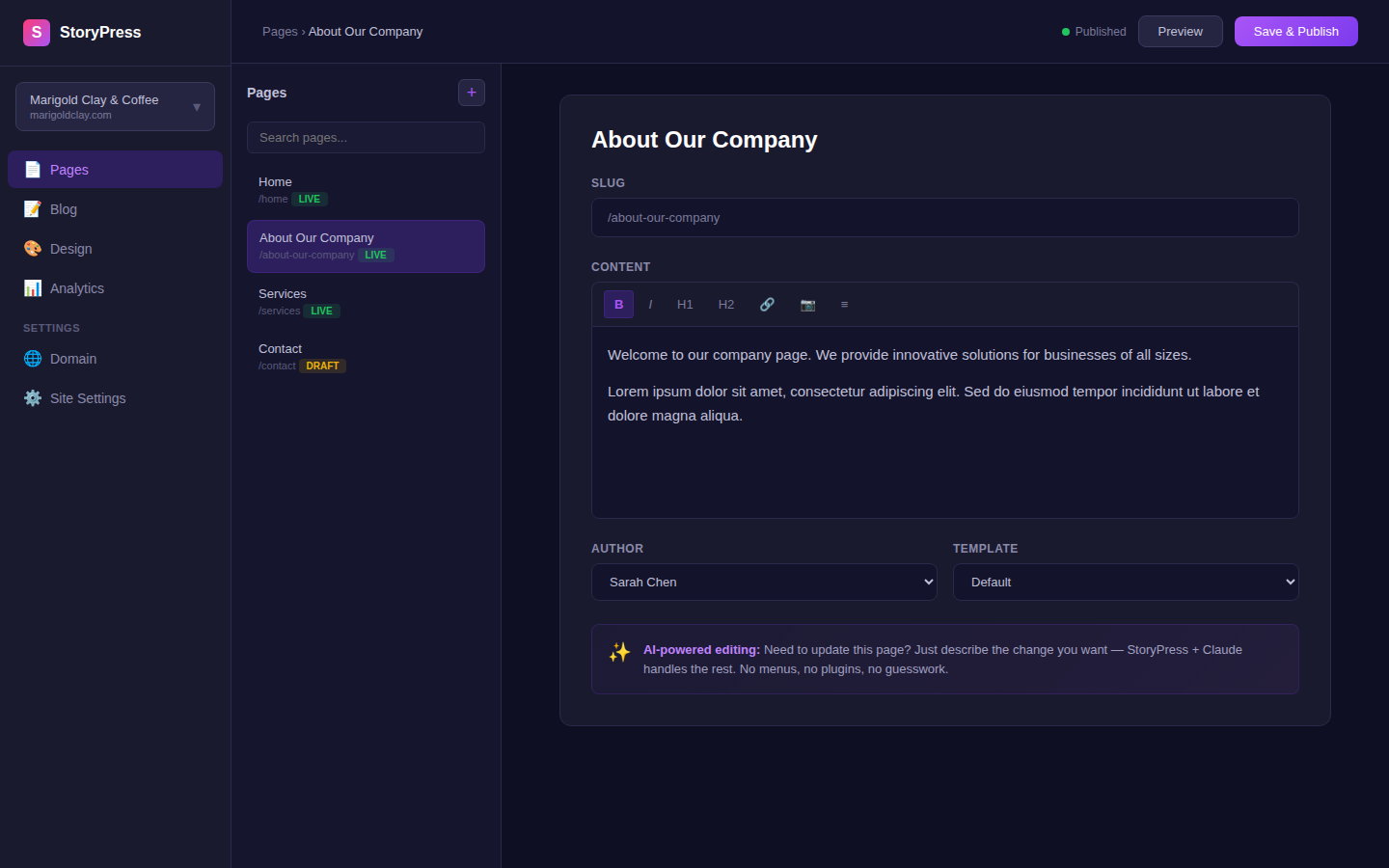
Part 1: Give the right amount of access (it is less than you think)
The single most common handoff mistake is handing over the admin login. Full admin access means the client can edit text, and also delete pages, uninstall things, and rearrange the layout you spent two weeks getting right. Then they call you to un-break it, and now you are doing free work that is also stressful.
Every serious platform has an editor-level role for exactly this reason. In WordPress it is the Editor role; Webflow and Framer both have a content-editor tier; site builders vary. Whatever the platform calls it, the test is the same:
The client CAN: change text, swap images, add a blog post, update hours and contact details.
The client CANNOT: edit layout, delete pages, change navigation, touch domain or billing settings.
Keep one admin account for the agency, in the CLIENT'S name if the relationship might end. Agency-owned logins holding a client's site hostage is how you end up in a bad Google review.
How to verify: log in as the client's account yourself and try to break something. If you can drag a section or delete the homepage, the role is too powerful.
Part 2: Build guardrails before you hand over the keys
Access control decides what the client can touch. Guardrails decide what happens when they touch it. Fifteen minutes of setup here prevents most of the classic disasters:
Drafts by default. New blog posts and pages should start unpublished, so a half-written post never goes live by accident.
Required fields with help text. If a blog post needs an excerpt and a featured image, make those fields required and write the image size in the field description ("landscape, at least 1600px wide").
Image size notes where they upload. The 8MB straight-off-the-phone photo is the number one thing clients do to a fast site. A one-line note at the upload point catches most of them.
A styles-locked template for new pages. If the client will add pages (a new service, a new team member), leave a duplicate-me template so new pages inherit the design instead of improvising it.
How to verify: create a test blog post as the client would. If you can publish it with no image, no excerpt, and a 9MB photo, the guardrails are not done.
Part 3: Train them on their own site, and make them drive
A screen-share where you click around for 45 minutes feels like training but is not. People retain what they do, not what they watch. The version that sticks takes 20 minutes:
Client shares THEIR screen, logged in as themselves.
They make three real edits while you talk them through it: change a line of text, swap an image, publish a short blog post. Real edits on the live site, not a sandbox. What they fix during training is a change they no longer email you about.
Record the call (Loom, Meet, Zoom, anything) and send them the link. The recording is the real training; the call is just where it gets made.
Watch for the moment they hesitate. Wherever they got confused is a line for the cheat sheet, not a personal failing.
How to verify: a week later, ask them to make one small edit without you on the phone. If they can, the handoff worked. If they cannot, redo the 20 minutes; it is still cheaper than a year of free edits.
Part 4: The one-page cheat sheet (and the price list)
The final artifact is a single page, PDF or shared doc, that answers the questions the client will have at 9pm on a Sunday when you are not answering the phone:
Where to log in (the exact URL, because they will lose it).
The five edits they will actually make, one line each: hours, text, images, new blog post, team member.
What to call you for, WITH PRICES: new pages, design changes, "something looks broken". A rate on paper turns the 11pm favor into a normal business transaction.
Who owns what: domain registrar, hosting, email, and where each renews. Clients discovering surprise renewals at month 6 is a trust-killer.
How to verify: send the cheat sheet to someone in the client's office who was NOT on the training call. If they can log in and change the opening hours using only the sheet, it is done.
| Handoff artifact | What it prevents | Time to make |
|---|---|---|
| Editor-level account (not admin) | Broken layouts, deleted pages | 10 min |
| CMS guardrails (drafts, required fields) | Accidental publishes, giant images | 15 min |
| Recorded 20-min training, client driving | "How do I log in again?" emails | 20 min |
| One-page cheat sheet with price list | Free-work creep, scope arguments | 30 min |
| Ownership list (domain, hosting, renewals) | Surprise renewals, hostage situations | 10 min |
A good handoff sounds like
"We changed the hours ourselves, took two minutes."
"We rewatched the video and added the new hire."
"Can you quote us for a new services page?"
"What would a redesign of the homepage cost?"
A bad handoff sounds like
"Can you change one word? Should be quick."
"I tried to fix it and now the menu is gone."
"What's our login again?"
"Why are we being charged $180 by a company called... Namecheap?"
Clients who can make their own small edits do not stop calling their agency. They stop calling about typos and start calling about projects.
The uncomfortable variable: the platform
Everything above gets easier or harder depending on what you built the site on. A stack with plugins to update and hosting to babysit means even a perfect handoff leaves maintenance work that someone must own, and "someone" is usually you, unpaid. This is exactly why we built StoryPress the way we did: clients edit by literally asking an AI assistant to make the change, there are no plugins to update, and hosting maintenance does not exist, so an agency can hand over a $5/month site with nothing left to babysit. We wrote up how the AI editing works in the MCP server announcement.
Whatever platform you use, the playbook stands: right-sized access, guardrails, training where the client drives, and one page of documentation with prices on it. Do those four things on your next launch and count the support emails that never arrive.
One practical website fix in your inbox each week

The Real Cost of a 'Free' Website Builder
Every website builder has a $0 tier, and the price is doing more marketing than the product. What the landing page does not show: your business living on a subdomain you do not own, the platform's ads on your pages, your site invisible in search because indexing is throttled or the pages are too slow, and the export button that does not exist when you try to leave. Free tiers are engineered to be outgrown painfully. This guide itemizes what each popular free plan actually withholds, what the real monthly number becomes once you need the basics, and when free genuinely is enough.

Website Not Secure? What It Means + 4 Fixes
Every browser now passes judgment on your site before a visitor reads a single word. Chrome prints Not Secure next to your address, Safari warns the connection is not private, and on a phone the warning fills the screen with a scary full-page interstitial. Visitors do not parse the technical details; they see a warning next to your business name and hit back. The cause is almost always one missing or misconfigured certificate, and the fix is usually free and done in under an hour. This guide walks the four fixes in order of likelihood, with a check to confirm each one worked.