Broken Links and 404s: Find Them, Fix Them, Stop Losing Visitors
Every site accumulates broken links as it grows. Pages get renamed, posts get deleted, a URL changes during a redesign, and a partner site you linked to three years ago quietly dies. Each dead link costs you twice: a visitor hits a wall and leaves, and Google wastes crawl budget on pages that no longer exist. The damage compounds slowly enough that most owners never notice until rankings slip. This guide shows you how to find every broken link on your site with free tools, fix each type the right way (redirect, update, or remove), and verify the cleanup actually worked.
One stray character is enough to break a link. Rename a page from /menu to /our-menu, delete an old service you no longer offer, or fat-finger a URL in a blog post, and somewhere on your site a visitor now hits a dead end: the 404 'page not found' screen.
Here is the part that stings. That visitor almost never hunts for the right page. They hit back and click a competitor instead. And every other website that linked to your old address (a local directory, a newspaper mention, a partner's site) is now pointing its authority at a wall.
The good news: finding broken links is free, fixing them takes minutes each, and there is a simple rule for choosing the right fix every time. Let's do it.
Step 1: Find every broken link (two free checks)
Check A: what Google already knows
Open Google Search Console (free, and if you have a website you should have this set up).
In the left menu, click Indexing, then Pages.
Scroll to the 'Why pages aren't indexed' list and look for Not found (404).
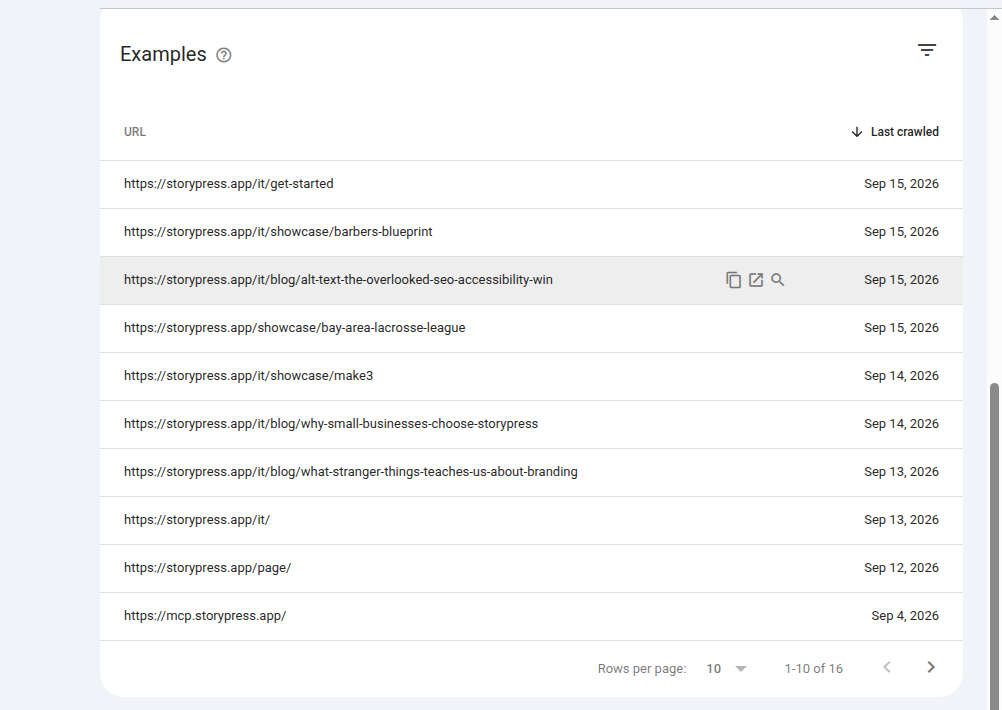
Click it. This is every dead address Google has tried to reach on your site, usually because something, somewhere, still links to it.
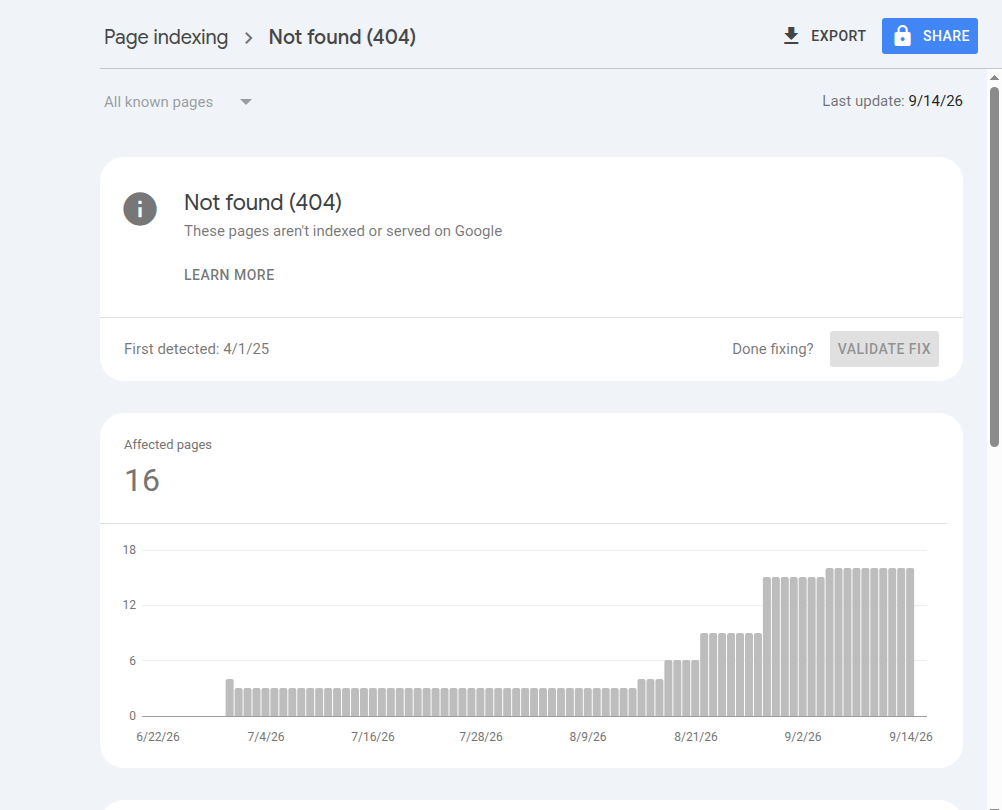
How to verify: click any URL in the list, then 'Inspect URL'. The report shows you the referring page when Google knows it, which tells you where the bad link lives.
Check B: broken links inside your own pages
Search Console only shows what Google stumbled into. For a full sweep of your own pages, run a crawler once a quarter:
Small site (under ~100 pages): the free Check My Links Chrome extension highlights every dead link directly on the page you are viewing. Open your key pages, run it, done.
Bigger site: Screaming Frog's free tier crawls up to 500 URLs. Enter your domain, wait, then open the 'Response Codes' tab and filter to 'Client Error 4XX'.
Write each broken URL in a simple two-column list: the dead address, and the page it should really go to (if one exists). That second column is your whole repair plan.
Step 2: Choose the right fix (one question)
Every broken link resolves with the same question: is there a page on your site today that covers what the dead page covered? Your answer picks the fix.
Send visitors and Google straight to the replacement. Authority follows.
But make your 404 page useful: search box, links to your key pages.
A 301 redirect is a permanent forwarding address. The browser silently carries the visitor to the new page, and Google's own documentation confirms a permanent redirect passes the old page's ranking signals to the new one. That is why a 301 to a genuinely related page beats letting the link die: you keep the visitor and the authority.
A 302 is the temporary version, meant for short-lived situations like a page briefly down for maintenance. If the move is forever, use 301. If you deleted the page on purpose and nothing replaces it, a clean 404 is honest and Google is fine with it; 404s only hurt when a real page people want now returns one.
Step 3: Apply the fix, case by case
Here is the full repair menu, matched to what actually happened to the page:
| What happened | The fix | Why |
|---|---|---|
| You renamed the page | 301 redirect old URL to new URL, then update your own menus and internal links | Old bookmarks and outside links keep working; internal links stop leaning on the redirect |
| You deleted it, a close replacement exists | 301 redirect to the replacement | Visitor still gets what they came for; authority transfers |
| You deleted it, nothing replaces it | Leave the 404, remove your own links to it | Redirecting to an unrelated page confuses people and Google alike |
| Typo in one of your links | Fix the typo where the link lives | No redirect needed; the target page was never broken |
| Deleted by accident | Restore the page (the Wayback Machine at web.archive.org often has a copy of what it said) | The original URL keeps its history and its backlinks |
Most website platforms have a built-in redirects panel where you paste the old path and the new one; no code involved. On StoryPress you can skip the panel entirely and just tell the AI 'redirect /menu to /our-menu', which is the whole reason we built editing this way: the $5/month plan handles chores like this by asking.
Redirect do's and don'ts
Do
Redirect each dead URL to its closest matching live page
Update your own internal links so they point straight at the new URL
Keep redirects in place for the long haul; outside links never expire
Keep a simple log of every redirect you add and why
Don't
Bulk-redirect every dead page to the homepage (Google treats these as soft 404s)
Chain redirects (A to B to C); point A directly at C
Use a 302 for a permanent move
Delete a page without checking what links to it first
Step 4: Verify every fix
A fix is not done until you have watched it work. Two checks, thirty seconds each:
Paste the OLD address into a free checker like httpstatus.io. You want to see exactly one hop: 301 followed by 200 at the new address. If you see 302, switch it to permanent. If you see two or more hops, shorten the chain.
Back in Search Console, open the URL in the 'Not found (404)' list and click Validate Fix on the report. Google re-checks the URLs over the following days and emails you the result.
Then put a reminder in your calendar: re-run Step 1 once a quarter. Broken links are not a one-time cleanup, they are entropy; every site that grows accumulates them.
A broken link is a customer you already earned, walking into a locked door you forgot about.
How to set up a redirect on StoryPress
If your site runs on StoryPress, the redirect side of this guide takes about a minute per link, and you have two routes.
Route 1: you rarely need one. When you rename a page or folder in StoryPress, the platform records the move and redirects the old address automatically. The most common cause of 404s on other platforms simply does not happen here.
Route 2: manual rules for everything else (a deleted page, a URL you inherited from an old site, a typo that got shared). In your dashboard, open Theme, then Advanced, and choose Add a Redirect Rule. Each rule has four fields:
Name: a label for you, like "old pricing page".
Request URL: the old, dead path (for example /old-services).
Target URL: where visitors should land instead.
Status: leave it on 301 for any permanent move, exactly as covered in Step 2 above.
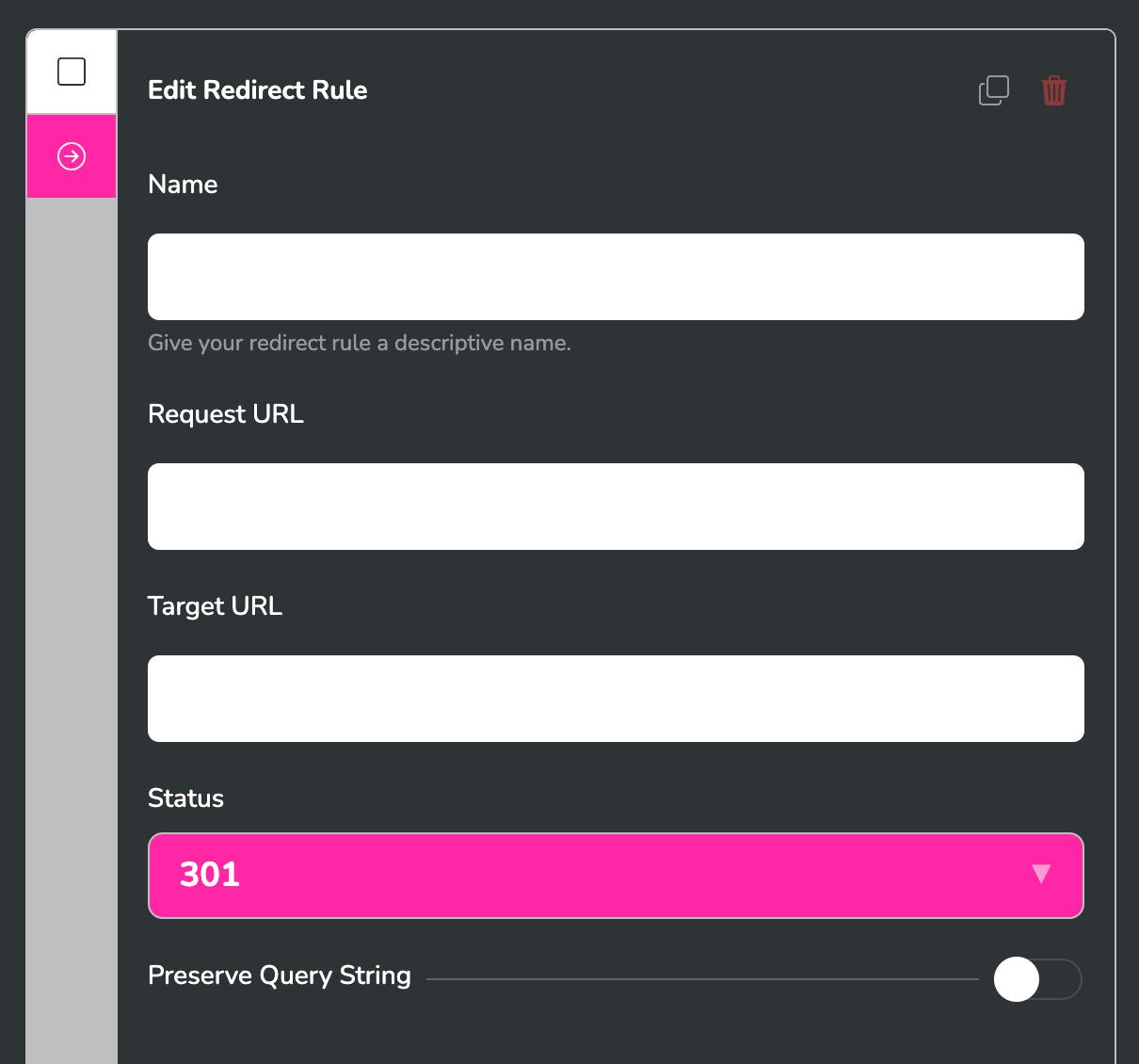
There is also a Preserve Query String toggle: leave it on, so a shared link like /old-services?ref=newsletter carries its tracking through to the new page. Save, then verify the hop with the checker from Step 4. And if you would rather not click through menus at all, this is StoryPress: you can just tell Claude "redirect /old-services to /services/drain-cleaning" and the rule is created for you.
One practical website fix in your inbox, twice a week

Service Pages That Rank: Why One Page Per Service Wins
A plumber who does drain cleaning, water heaters, and full bathroom remodels usually gets found for only one of those, and sometimes none. The pattern shows up in every trade: the phone rings for the service you are already known for, while the profitable ones sit silent. Almost always, the website has a single Services page trying to cover everything at once, and it quietly loses to competitors who gave each job its own page. Most owners never notice, because the site looks perfectly fine. This guide covers which services deserve a dedicated page, what goes on each one, and how to check the split is winning searches.

How AI Assistants Find and Recommend Businesses (and How to Be Findable)
When someone asks ChatGPT for "a good accountant near me" or asks Claude to "find a photographer for a small wedding," the assistant answers with a shortlist. Some businesses make that shortlist. Most never do. The difference is rarely luck: it comes down to whether the assistant can find, read, and trust your website. This guide explains how AI assistants actually source their recommendations in 2026, then walks you through five checks you can run today.